Reenabling Foreign Volumes in VxVM after Raid Controller Replacement
This Job Aid is intended for use by the FTO Support Specialist team only. If assistance on the below issue is needed, please place a support call.
Symptoms:
- Raid controller was replaced
- Raid groups show active/optimal during POST
- Once logged in, the output from Manage > Storage > Show ALL shows ‘Foreign’ status
- Unable to refresh using Manage > Storage > Scan

Fix:
- Log into CLI on system using admin account (Default login is admin / P@ssw0rd)
- Navigate to Support
- Navigate to Maintenance
a. You will be prompted for a password. Default is P@ssw0rd - Type elevate
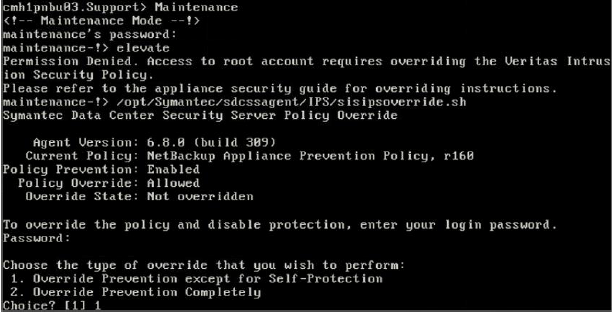
a. If the below error is received, you will need to input the following command to bypass security settings:
i. /opt/Symantec/sdcssagent/IPS/sisipsoverride.sh
ii. Choose Option 1 “Override Prevention except for Self-Protection”
iii. Choose Option 3 “1 hour”
iv. Once policy is overridden, input elevate again
5. Navigate to the MegaCli directory
cd /opt/MegaRAID/MegaCli
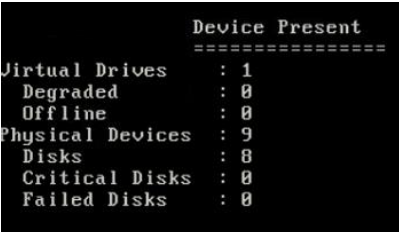
- Confirm volumes are showing enabled at the adapter level
./MegaCli64 -AdpAllInfo -aAll |more
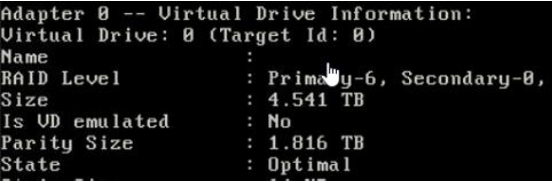
7. Confirm virtual drive is enabled at the adapter level
./MegaCli64 -LDInfo -L0 -a0 |more
Note: -L values are the virtual drive number, -a values are the adapter. You will need to run the above command for each VD and adapter.
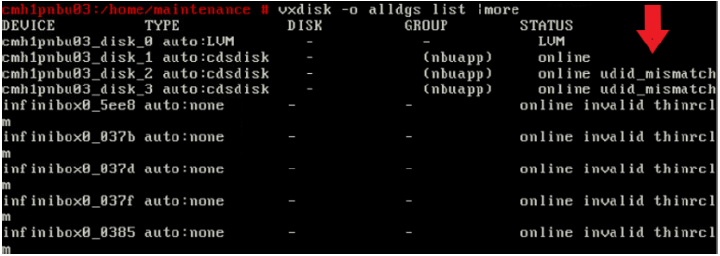
8. View all disk groups available
vxdisk -o alldgs list |more
9. Confirm controller sees all disks
vxdisk scandisks
- Update the udid_mismatch for each affected disk group.
vxdisk updateudid
Example from above image: vxdisk updateudid cmh1pnbu03_disk_2
11. Confirm DG’s are online
vxdisk -o alldgs list
- If DGs are showing as “clone_disk”, remove the clone flag for all affected DGs
vxdisk set clone=off

Example from above image: vxdisk set cmh1pnbu03_disk_2 clone=off
13. Confirm all DGs are now showing Online in the status column
vxdisk -o alldgs list

14. Exit the Maintenance prompt and navigate back to the Main Appliance Shell
a. Manage
b. Storage
15. Scan to refresh storage devices
16. Show Disk to confirm DGs are “In Use”
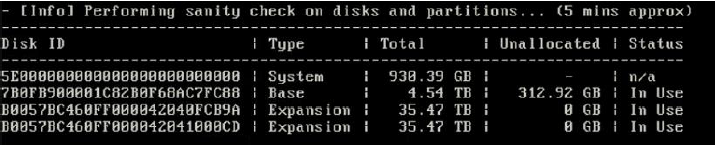
17. Reboot system from Main > Support > Reboot to confirm changes held from Step 16 above.