Unity Upgrade
Problem:
Unisphere displays the following Alert:
A drive firmware upgrade (version xxxx) is now available for download
Customer wants assistance upgrading their Unity array
When logged into a Unity system via the Unisphere GUI, the array automatically scans for and notifies you if a new drive firmware update is available. If a firmware update is available, an alert message “A drive firmware upgrade (version xxxx) is now available for download” is displayed in the list of Alerts for each drive firmware requiring updating.
Advisory
DELL EMC recommend performing Unity OE code upgrade during a low production period. There shouldn't be any DU/DL during the upgrade however may slow things down and have higher CPU utilization during the upgrade.
Prior to upgrade cores/service should have at least 5GB free space. Usually deleting old data collects is the best way to free up that space.
If upgrading to 4.5 or 4.5.1 see KB - Dell EMC Unity: Replication Data Store Not Updating after 4.5.0 or 4.5.1 upgrade (User Correctable) https://support.emc.com/kb/531543
This article has been promoted as HVC on DELL EMC Community Network (DECN): https://community.emc.com/docs/DOC-56665
Steps to upgrade Unity OE code through Unisphere
Pre-work to be done by the customer prior to day of the upgrade
- Reboot each SP one at a time with a 10 minute gap between restarts
- Log into Unisphere with admin account or one with similar privileges
- Navigate to Settings > Software and Licenses > Software Upgrades
- Perform health checks
Upgrade
- Log into the primary SP
- Verify there is enough space to proceed (less than 80%)
df -k
- Move over to the peer SP and verify space
peer ssh
df -k
- Log into Unisphere as admin or equivalent user
- Go to the Settings menu
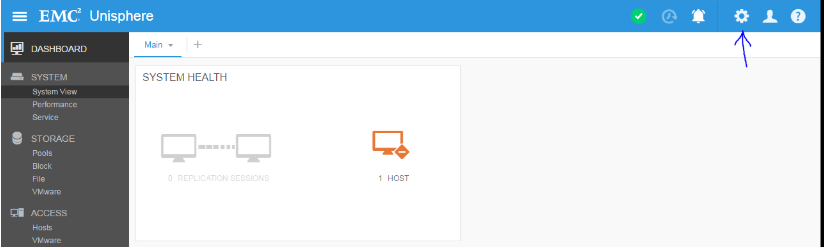
-
Navigate to Software and Licenses > Software Upgrade
There are 3 options in here
Perform Health Check
Start Upgrade
Download New Software -
Perform one last health check before beginning the upgrade
If any errors are reported, STOP here and correct those issues. Any warnings need to be reviewed and a decision made on whether those should be addressed before or after the upgrade
-
Download the software file if needed from: https://www.dell.com/support/home/en-us/product-support/product/unity-family/drivers
- If the customer is using replication and that has not been disabled to this point, instruct them to disable replication
- Click on Start Upgrade to launch the Upgrade Wizard
-
Upload the Unity OE upgrade file
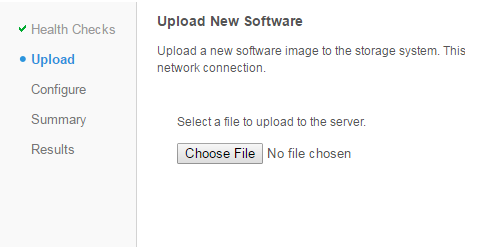
Once complete the file name will be shown to the right of the Choose File button
After selecting Next the system will prepare the file for the upgrade, this can take up to 10 minutes.
If the upgrade is cancelled after this step, delete the image from /var/tmp/upgrade on the primary SP. -
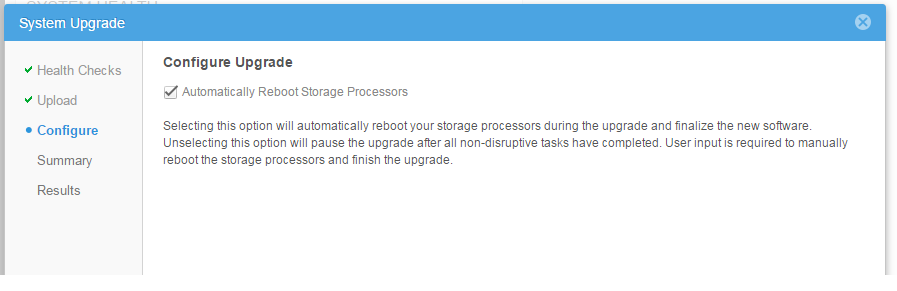
Configure Upgrade - Automatically Reboot Storage Processors is selected by default, this is the recommended setting so the upgrade can run through and the system will reboot the SPs as needed. Alternatively this can be unchecked and the update can be completed at a later time via the "Resume Upgrade" option.
-
Review Summary page, ensure installed version and new version are correct
Best practice is to perform the upgrade with minimal I/O or with the system quiesced
-
Select Finish to start the upgrade
- After upgrade is complete, refresh Unisphere and the new version should be displayed in Summary Tab > System View
Steps to upgrade the drive firmware
- Login to the Unity array via the Unisphere GUI.
- Select Update System Settings icon on the top right hand corner of the GUI.
- Select Drive Firmware under Software and Licenses
- Select Obtain Drive Firmware Online. It will take you to the download page for your system. Download the latest “Unity_Drive_Firmware_Package” version
- Select Install Drive Firmware
-
Select Perform Health Checks
Note: If the pre-update health check fails, you need to resolve the issue before performing an update. If the health check does not fail, but displays warning messages highlighting potential issues, you can check and correct these issues either before or after the update.
-
Select Choose File and select the drive firmware package previously downloaded
- Select Next to upload the drive firmware package to the storage system
- Select Finish to install the drive firmware
- View the results and close
Note: the word “Disk” may be used instead of “Drive” in the Unisphere GUI depending on your version of software
Steps to upgrade Unity OE code through CLI (uemcli)
- Download the software file, if needed, from: https://www.dell.com/support/home/en-us/product-support/product/unity-family/drivers
Any client that supports uemcli can be used, Windows, Linux, Unity Console
If using the unity console
SSH to the managing SP
Move the image file via winSCP or sftp to the correct directory /cores/service
For OE 4.5+ move file to /cores/service/user
Copy the image to the peer SP
scp /cores/service/<upgrade_image> peer:/cores/service
OE 4.5+: scp /cores/service/user/<upgrade_image> peer:/cores/service/user
Delete the image from local SP
rm /cores/service/<image name>
OE 4.5+: rm /cores/service/user/<upgrade_image>
- Upload the image
uemcli -d <unity_management_ip> -u admin -securePassword -upload -f c:\data\<upgrade_image> upgrade

If using unity console
uemcli -d-u admin -securePassword -upload -f /cores/service/user/ upgrade If the upgrade is cancelled after this step, delete the image from /var/tmp/upgrade on the primary SP.
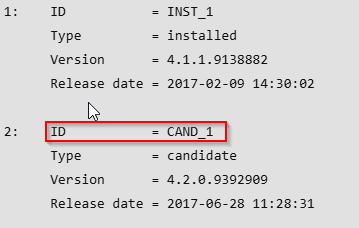
- Verify the image candidate ID
uemcli -d <unity_management_ip> -u admin -securePassword /sys/soft/ver show
- Start the upgrade
uemcli -d <unity_management_ip> -u admin -securePassword /sys/soft/upgrade create -candId <CAND_ID>
- Monitor the upgrade
uemcli -d <unity_management_ip> -u admin -securePassword /sys/soft/upgrade show -detail
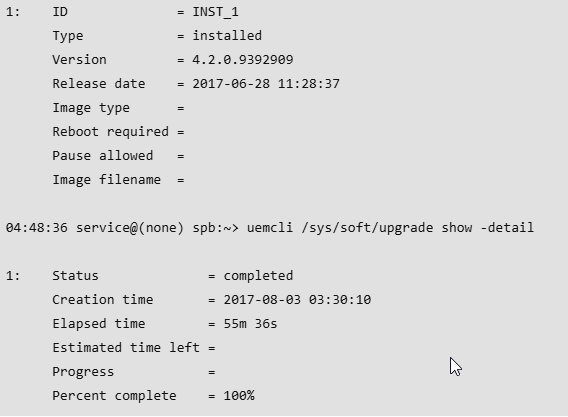
- Verify after completion from sp login
uemcli /sys/soft/ver show -detail
uemcli /sys/soft/upgrade show -detail
Resources
How to Upgrade Dell EMC Unity OE code
Revision Matrix
Drive Firmware Upgrade Instructions and Information