Basic formatting syntax
Learn how to apply basic formatting to your notes, using Markdown. For more advanced formatting syntax, refer to Advanced formatting syntax.
Paragraphs
To create paragraphs, use a blank line to separate one or more lines of text.
This is a paragraph.

This is another paragraph.
Multiple blank spaces
Multiple adjacent blank spaces in and between paragraphs collapse to a single space when displaying a note in Reading view and on Obsidian Publish sites.
Multiple          adjacent          spaces


and multiple newlines between paragraphs.
Multiple adjacent spaces
and multiple newlines between paragraphs.
If you want to add multiple spaces, you can add (blank space) and <br> (newline) to your note.
Headings
To create a heading, add up to six # symbols before your heading text. The number of # symbols determines the size of the heading.
# This is a heading 1
## This is a heading 2
### This is a heading 3
#### This is a heading 4
##### This is a heading 5
###### This is a heading 6
This is a heading 1
This is a heading 2
This is a heading 3
This is a heading 4
This is a heading 5
This is a heading 6
Styling text
| Style | Syntax | Example | Output |
|---|---|---|---|
| Bold | ** ** or __ __ |
**Bold text** |
Bold text |
| Italic | * * or _ _ |
*Italic text* |
Italic text |
| Strikethrough | ~~ ~~ |
~~Striked out text~~ |
~~Striked out text~~ |
| Highlight | == == |
==Highlighted text== |
==Highlighted text== |
| Bold and nested italic | ** ** and _ _ |
**Bold text and _nested italic_ text** |
Bold text and nested italic text |
| Bold and italic | *** *** or ___ ___ |
***Bold and italic text*** |
Bold and italic text |
Quotes
You can quote text by adding a > symbols before the text.
> Human beings face ever more complex and urgent problems, and their effectiveness in dealing with these problems is a matter that is critical to the stability and continued progress of society.

\- Doug Engelbart, 1961
Human beings face ever more complex and urgent problems, and their effectiveness in dealing with these problems is a matter that is critical to the stability and continued progress of society.
- Doug Engelbart, 1961
Tip
You can turn your quote into a callout by adding [!info] as the first line in a quote.
Code
You can format code both inline within a sentence, or in its own block.
Inline code
You can format code within a sentence using single backticks.
Text inside `backticks` on a line will be formatted like code.
Text inside backticks on a line will be formatted like code.
Code blocks
To format a block of code, surround the code with triple backticks.
```
cd ~/Desktop
```
cd ~/Desktop
You can also create a code block by indenting the text using Tab or 4 blank spaces.
cd ~/Desktop
You can add syntax highlighting to a code block, by adding a language code after the first set of backticks.
```js
function fancyAlert(arg) {
  if(arg) {
    $.facebox({div:'#foo'})
  }
}
```
function fancyAlert(arg) {
  if(arg) {
    $.facebox({div:'#foo'})
  }
}
Obsidian uses Prism for syntax highlighting. For more information, refer to Supported languages.
Note
Live Preview mode doesn't support PrismJS and may render syntax highlighting differently.
External links
If you want to link to an external URL, you can create an inline link by surrounding the link text in brackets ([ ]), and then the URL in parentheses (( )).
[Obsidian Help](https://help.obsidian.md)
Tip
If you want to link to a file inside your vault, consider using an internal link instead.
You can also create external links to files in other vaults, by linking to an Obsidian URI.
[Note](obsidian://open?vault=MainVault&file=Note.md)
Escape blank spaces in links
If your URL contains blank spaces, you need to escape them by replacing them with %20.
[My Note](obsidian://open?vault=MainVault&file=My%20Note.md)
You can also escape the URL by wrapping it with angled brackets (< >).
[My Note](<obsidian://open?vault=MainVault&file=My Note.md>)
External images
You can add images with external URLs, by adding a ! symbol before an external link.
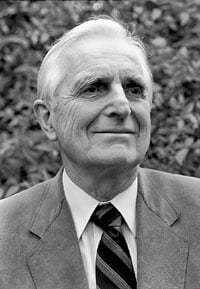

You can change the image dimensions, by adding |640x480 to the link destination, where 640 is the width and 480 is the height.

If you only specify the width, the image scales according to its original aspect ratio. For example, **Missing image:** Engelbart.jpg.
Tip
If you want to add an image from inside your vault, you can also embed an image in a note.
Lists
You can create an unordered list by adding a -, *, or + before the text.
- First list item
- Second list item
- Third list item
- First list item
- Second list item
- Third list item
To create an ordered list, start each line with a number followed by a . symbol.
1. First list item
2. Second list item
3. Third list item
- First list item
- Second list item
- Third list item
You can create a nested list by indenting one of more list items.
1. First list item
   1. Ordered nested list item
2. Second list item
   - Unordered nested list item
- First list item
- Ordered nested list item
- Second list item
- Unordered nested list item
You can press Tab or Shift+Tab to indent or unindent one of more selected list items.
Task lists
To create a task list, start each list item with a hyphen and space followed by [ ].
- [x] This is a completed task.
- [ ] This is an incomplete task.
- [x] This is a completed task.
- [ ] This is an incomplete task.
You can toggle a task in Reading view by selecting the checkbox.
Tip
You can use any character inside the brackets to mark it as complete.
- [x] Milk
- [?] Eggs
- [-] Eggs
- [x] Milk
- [x] Eggs
- [x] Eggs
Horizontal bar
You can use three or more stars ***, hyphens ---, or underscore ___ on its own line to add a horizontal bar. You can also separate symbols using spaces.
***
****
* * *
---
----
- - -
___
____
_ _ _
Footnotes
You can add footnotes[1] to your notes using the following syntax:
This is a simple footnote[^1].

[^1]: This is the referenced text.
[^2]: Add 2 spaces at the start of each new line.
  This lets you write footnotes that span multiple lines.
[^note]: Named footnotes still appears as numbers, but can make it easier to identify and link references.
You can also inline footnotes in a sentence. Note that the caret goes outside the brackets.
You can also use inline footnotes. ^[This is an inline footnote.]
Comments
You can add comments by wrapping text with %%. Comments are only visible in Editing view.
This is an %%inline%% comment.

%%
This is a block comment.

Block comments can span multiple lines.
%%
Learn more
To learn more advanced formatting syntax, such as tables, diagrams, and math expressions, refer to Advanced formatting syntax.
To learn more about how Obsidian parses Markdown, refer to Obsidian Flavored Markdown.
- This is a footnote.↩︎
Links to this page