Drive Issues
Problem:
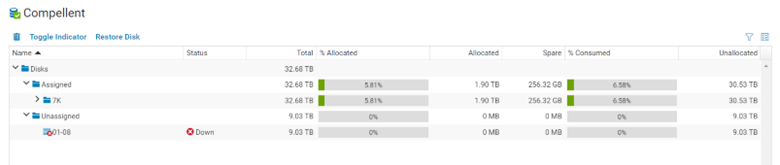
After disk replacement disk is not correctly assigned in the GUI.
Possible Cause:
Incorrect attribute set - [[#Drive Attribute]]
Disk status is ManagedForeign - [[#ManagedForeign]]
Unassigned disk - [[#Unassigned disk]]
Resolution:
Insert replacement drive
Verify status in GUI
Drive Attribute
From the CLI
Access the development shell
shellaccess developer
List the disks in the system
disk show
Check drive details
disk get <disk number>
Note the LicenseStatusEvaluated and DriveLine attributes
Change DriveLine value from EnterpriseValue to EnterprisePlus
disk set <disk number> 120 EnterprisePlus -systemwriteonly
Verify change
disk get <drive number>
Change LicenseStatusEvaluated value from NotLicensed to Licensed
disk set <disk number> 122 1 -systemwriteonly
Verify change
disk get <disk number>
Verify status in GUI
Add [[#Unassigned disk]] to folder and perform RAID rebalance
ManagedForeign
From the CLI
Access the development shell
shellaccess developer
List the disks in the system
disk show
Record the disk index number with the ManagedForeign status
Clear the status
disk unmanage <disk index>
Add [[#Unassigned disk]] to correct folder and perform RAID rebalance if necessary
Unassigned disk
From the CLI
Access the development shell
shellaccess developer
List the disks in the system - Look for the disk with an unmanaged status
disk show
Select the disk to be changed
disk manage <disk index>
Set the correct folder
disk set <disk index> parentfolder <desired folder>
Deleting a Ghost Disk
- Locate disk index number
disk show
- Elevate privileges
shellaccess developer
- Manage the disk
disk manage <disk index>
- Select the disk
disk select <disk index>
- Delete the disk
disk delete <disk index>
- Verify disk is deleted
disk show
Resources:
[[Compellent Drive Attribute Change.pdf]]
[[../../../Documentation/Dell_EMC/Compellent/Unmanaged or Unassigned.pdf|Unmanaged or Unassigned]]